PSDRestyle — Batch-Replace Fonts & Sizes in Photoshop Text Layers
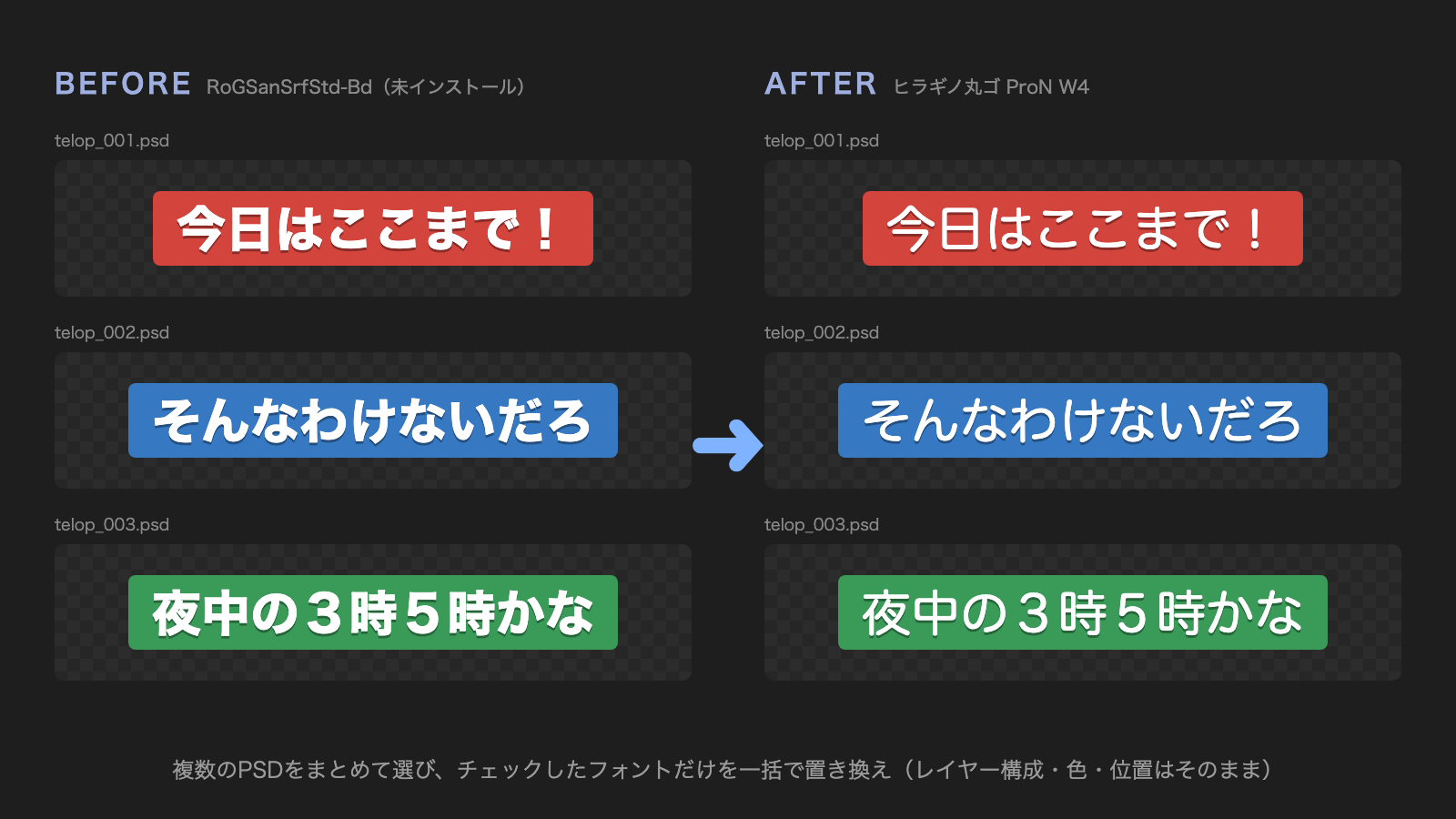
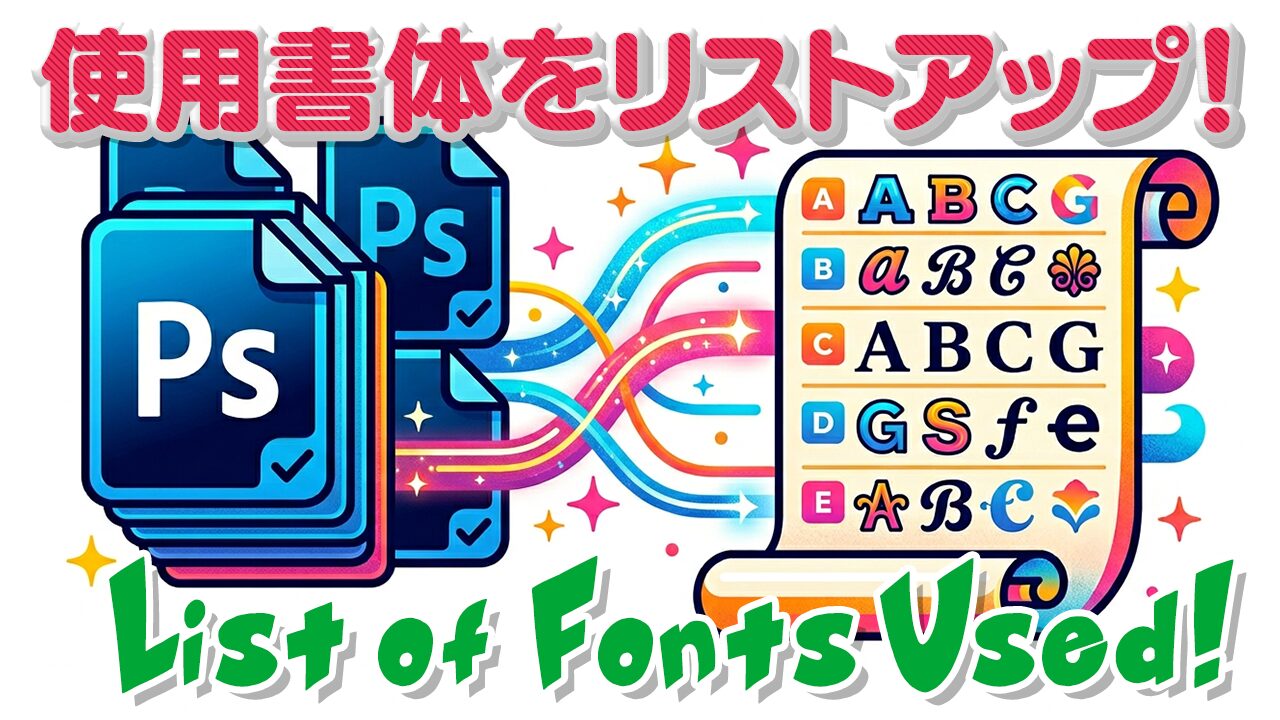
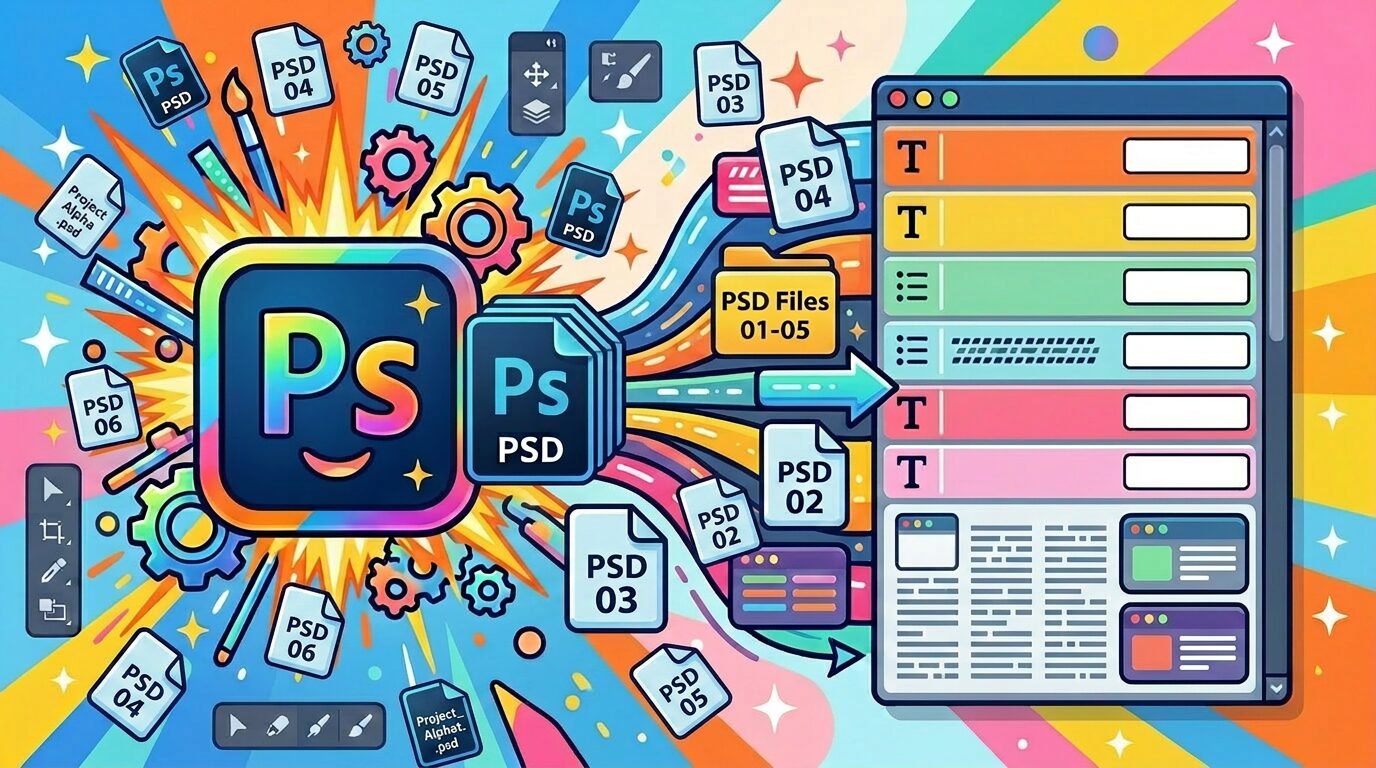
A Photoshop plugin that reads the fonts used in multiple PSD caption files, and replaces only the fonts you check with a new font and/or font size — across all files at once.
What is PSDRestyle?
In video editing, on-screen captions are often kept as dozens or even hundreds of PSD files. When the font has to change, or the text needs to be a little bigger, are you still opening them one by one? PSDRestyle takes that chore away.
Select the PSDs together, check the fonts you want to replace, choose the new font — and every file is rewritten and saved automatically.
Features
Just select the files — pick multiple PSD / PSB files; the fonts in use are listed automatically (read directly from the files, without opening them in Photoshop, so it is fast)
Only the fonts you check — text in other fonts is left exactly as it is
Fonts that are not installed are fine — captions made with fonts you do not have can still be replaced with the font you choose and saved (no “font not found” dialogs)
Batch font-size change — together with the font, or on its own
Mixed-font layers supported — when a caption mixes fonts, only the parts in the checked font are replaced
Automatic backup — originals are copied to a “_backup_元データ” folder next to each PSD before anything is changed (on by default)
Japanese / English UI — follows Photoshop’s display language
How to use
Just work down the panel from the top. There are four steps; once you are used to it, the whole thing takes about a minute.
STEP 1 Choose the PSD files
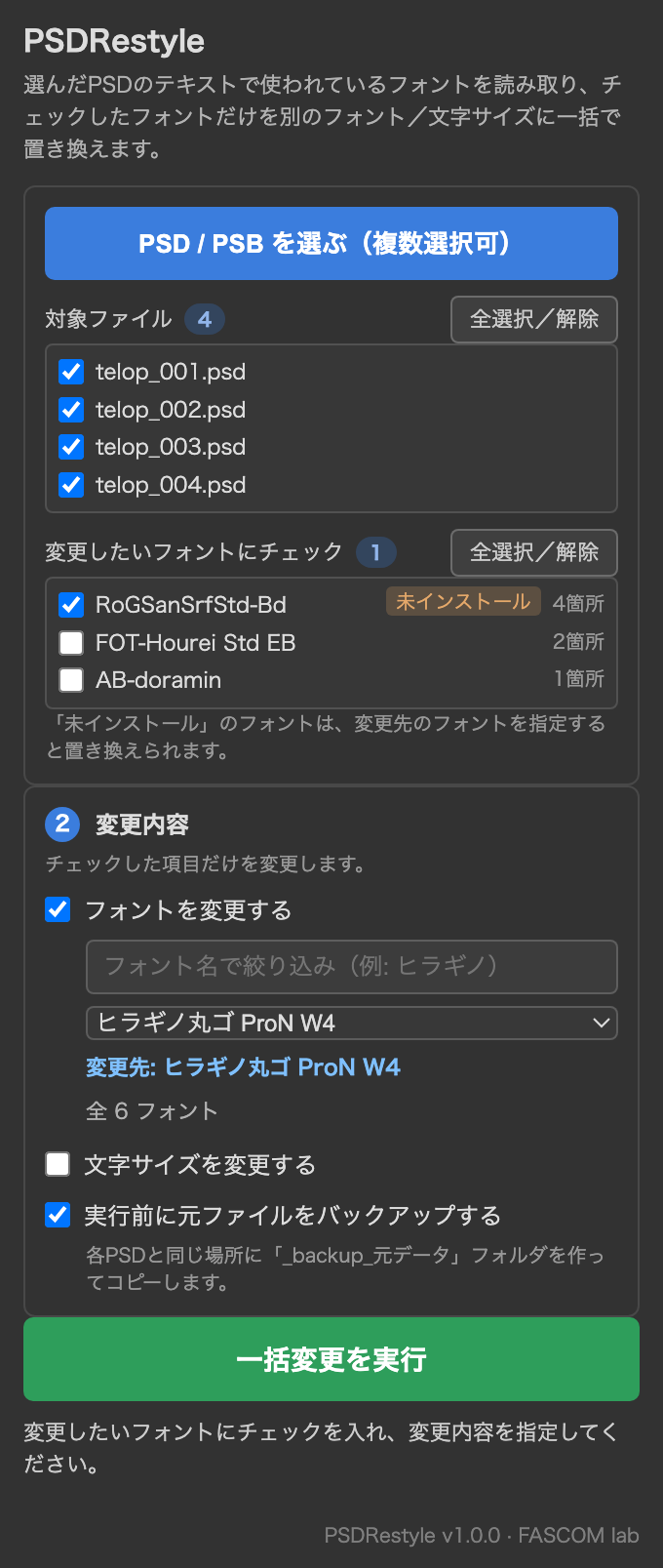
Click Select PSD / PSB files (multiple allowed) at the top of the panel and pick the PSDs you want to change. They appear under “Files”, and the fonts used in them are read automatically. Because the files are read directly rather than opened in Photoshop, even dozens of files take only a few seconds.
STEP 2 Check the fonts to change
The list under “Check the fonts to change” shows each font name and how many places it is used. Fonts that are not installed on this computer are tagged “not installed”. Check only the fonts you want to replace — text in unchecked fonts is never touched.
STEP 3 Set what to change
To change the font: check “Change the font” and pick the new font from the list. To change the size: check “Change the font size” and enter a value in pt. Font and size can be changed at the same time.
STEP 4 Run
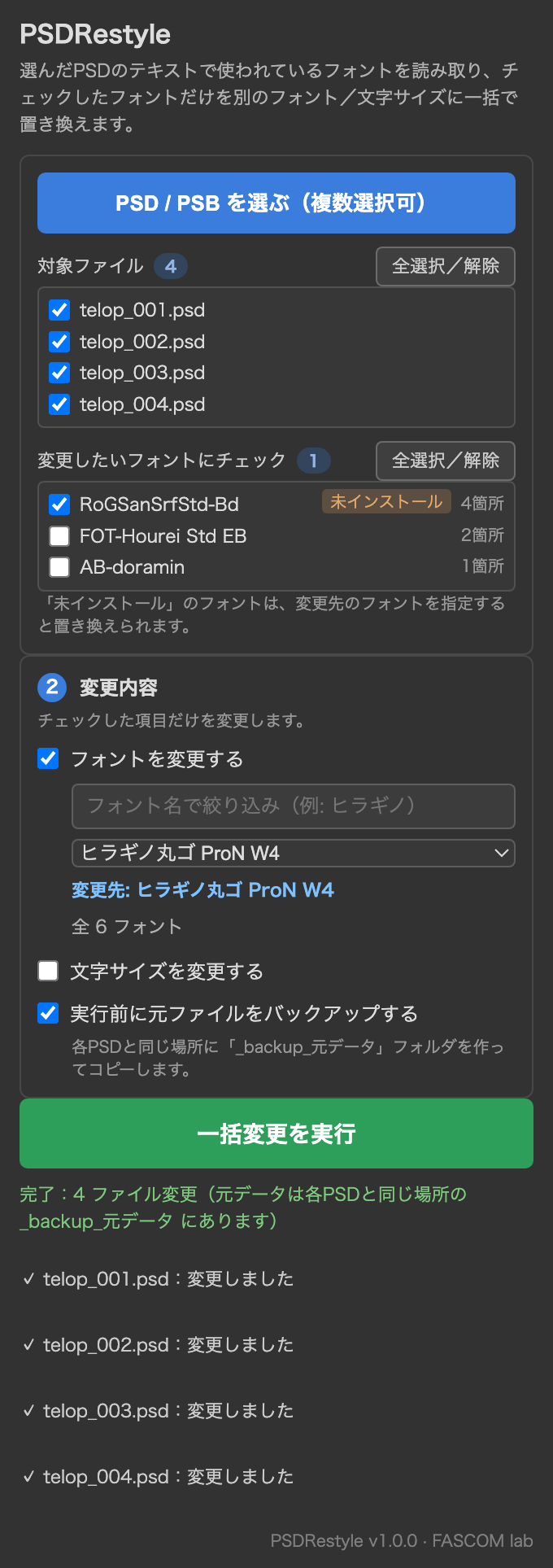
Click Run. Each selected PSD is rewritten and saved in place, and the result for every file is shown at the bottom of the panel.
Fonts that are not installed on this computer cannot be edited unless the font itself is changed. To change only the size of text in a font you do not have, also check “Change the font” and choose a new font.
System requirements
App: Adobe Photoshop 2023 (24.0) or later (tested on 2024 / 2025 / 2026)
OS: macOS (Apple Silicon / Intel), Windows 10 / 11
Files: PSD / PSB containing text layers — no limit on the number of files per run
Target fonts: any font installed on this computer (including fonts activated through Adobe Fonts)
Install: .ccx via Creative Cloud; one license key works on both Mac and Windows
Fonts that are not installed can be used as the source (the font to replace). The target font must be installed on this computer.
Price: ¥2,500 (one-time purchase, personal & commercial use)
Get it / Download
Buy PSDRestyle — ¥2,500. After payment, your license key and the .ccx download URL are emailed to you automatically (usually within a few minutes).
Installation
After purchase you will receive the download URL by email (the file extension is .ccx).
Download PSDRestyle.ccx from the URL in the email
Double-click PSDRestyle.ccx — Adobe Creative Cloud opens and installs it (if a “publisher cannot be verified” notice appears the first time, it is safe to continue)
If nothing happens, or you see “no application can open this file”: right-click PSDRestyle.ccx and open it with “UnifiedPluginInstallerAgent” (one-time step). ・Mac: “Open With” → “Other…” → Macintosh HD ▸ Library ▸ Application Support ▸ Adobe ▸ Adobe Desktop Common ▸ RemoteComponents ▸ UPI ▸ UnifiedPluginInstallerAgent ・Windows: “Open with” → “Choose another app” → “Look for another app on this PC” → C:\Program Files\Common Files\Adobe\Adobe Desktop Common\RemoteComponents\UPI\UnifiedPluginInstallerAgent\UnifiedPluginInstallerAgent.exe
Launch Photoshop and open Plugins → PSDRestyle
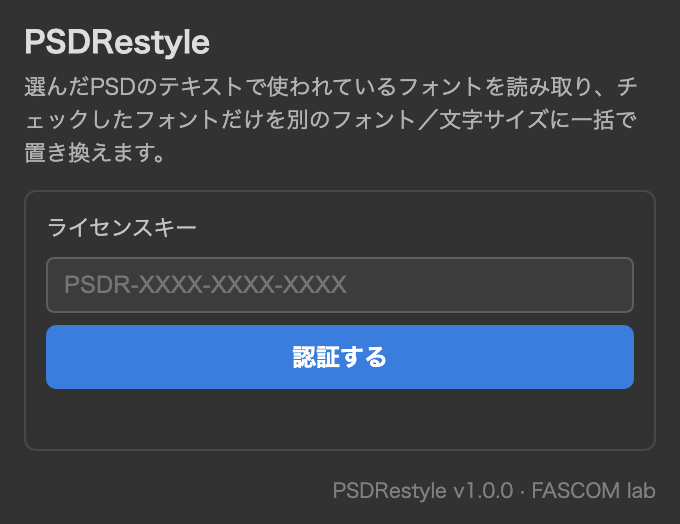
The first time you open the panel, enter the license key from the email
ABOUT ME
知多
Adobe 拡張機能・スクリプト開発 / 映像編集
映像編集の現場で20年以上働く中で培った経験から、繰り返し作業を自動化する Adobe 拡張機能・スクリプトを開発・販売しています。
Premiere Pro / Photoshop / After Effects 向けのツールが中心。「より早く、より効率的に」をコンセプトに、現場で本当に使える道具づくりを目指しています。